Deploying Laravel + Nuxt with Dokploy: Production Setup Guide
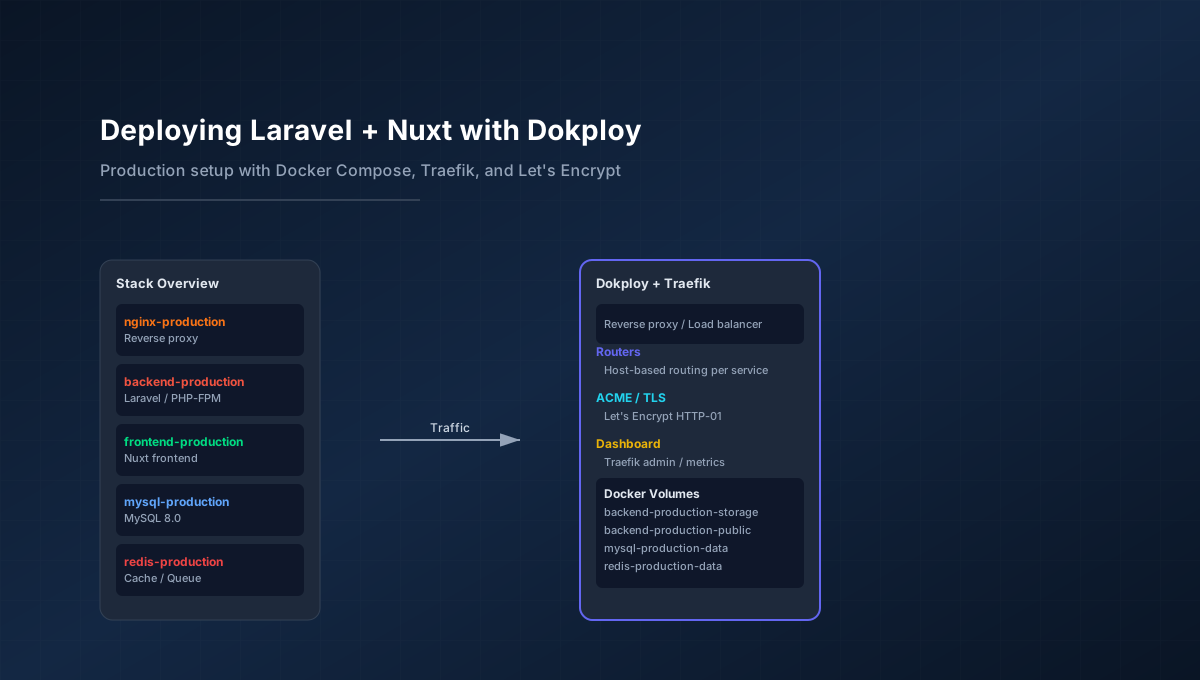
Dokploy combines Docker Compose deployment with Traefik reverse proxy and Let's Encrypt SSL into a single interface. After deploying multiple Laravel + Nuxt stacks through Dokploy, I've settled on a repeatable pattern that handles the full stack: Nginx, PHP-FPM, MySQL, Redis, Reverb, and the Nuxt frontend.
This guide covers the complete setup from Docker Compose files to DNS configuration and HTTPS enablement.
Docker Compose Structure
The foundation is a production docker-compose.yml that defines services for the Laravel backend, Nuxt frontend, MySQL, Redis, and supporting workers. Each service has resource limits, health checks, and restart policies.
Core Services
The stack consists of these services:
- nginx-production: Nginx reverse proxy serving the Laravel application
- backend-production: PHP-FPM container running Laravel
- frontend-production: Nuxt frontend application
- mysql-production: MySQL 8.0 database
- redis-production: Redis for caching and queues
- reverb-production: Laravel Reverb for WebSocket connections
- scheduler-production: Laravel task scheduler
- worker-production: Laravel queue worker
Volume Strategy
Shared volumes handle storage and public assets:
volumes:
  mysql-production-data:
  backend-production-storage:
  backend-production-phpunit-cache:
  backend-production-composer-cache:
  redis-production-data:
  backend-production-public:
  networks:
    production-network:
      driver: bridge
The backend-production-public volume is critical - it's mounted to both the backend and frontend containers so that Laravel's public assets and Nuxt's built output are accessible through Nginx.
Nginx Configuration
Nginx sits in front of PHP-FPM and handles static files, PHP processing, and security headers. The configuration uses the Docker network alias for backend communication:
server {
    listen 80;
    server_name api.yourdomain.com;
    root /var/www/public;
    index index.php;
    client_max_body_size 50m;

    location / {
        try_files $uri $uri/ /index.php?$query_string;
    }

    location ~ \.php$ {
        fastcgi_pass backend:9000;
        fastcgi_index index.php;
        include fastcgi_params;
        fastcgi_param SCRIPT_FILENAME /var/www/public$fastcgi_script_name;
        fastcgi_read_timeout 90;
    }

    location ~ /\.(?!well-known).* {
        deny all;
    }
}
Save this as backend/docker/nginx-production.conf and mount it into the Nginx container.
Backend Dockerfile
The Laravel Dockerfile uses a multi-stage build to keep the production image small while having all build dependencies available for Composer and PHP extensions:
# Stage 1: Build environment and Composer dependencies
FROM php:8.4-fpm AS builder

RUN apt-get update && apt-get install -y --no-install-recommends \
    curl unzip libonig-dev libssl-dev libxml2-dev libcurl4-openssl-dev \
    libicu-dev libzip-dev libpng-dev libjpeg62-turbo-dev libwebp-dev libfreetype6-dev \
    && pecl install redis-6.3.0 \
    && docker-php-ext-enable redis \
    && docker-php-ext-configure gd --with-jpeg --with-freetype --with-webp \
    && docker-php-ext-install -j$(nproc) intl zip gd bcmath opcache pdo_mysql soap pcntl \
    && apt-get autoremove -y && apt-get clean && rm -rf /var/lib/apt/lists/* /tmp/* /var/tmp/*

WORKDIR /var/www
COPY . /var/www

RUN curl -sS https://getcomposer.org/installer | php -- --install-dir=/usr/local/bin --filename=composer \
    && composer install --no-dev --optimize-autoloader --no-interaction --no-progress --prefer-dist --no-scripts \
    && composer run-script post-autoload-dump --no-interaction

# Stage 2: Production environment
FROM php:8.4-fpm

RUN apt-get update && apt-get install -y --no-install-recommends \
    libicu-dev libzip-dev libpng-dev libjpeg62-turbo-dev libwebp-dev libxml2 \
    libssl3 libcurl4 libfreetype6 rsync gosu \
    && apt-get autoremove -y && apt-get clean && rm -rf /var/lib/apt/lists/* /tmp/* /var/tmp/*

COPY --from=builder /usr/local/lib/php/extensions/ /usr/local/lib/php/extensions/
COPY --from=builder /usr/local/etc/php/conf.d/ /usr/local/etc/php/conf.d/

RUN mv "$PHP_INI_DIR/php.ini-production" "$PHP_INI_DIR/php.ini"

COPY --from=builder /var/www /var/www
RUN cp -a /var/www/public /var/www/public-src

WORKDIR /var/www

RUN sed -i \
    -e 's|^error_log = .*|error_log = /var/www/storage/logs/php-fpm.log|' \
    -e 's|^access.log = .*|access.log = /var/www/storage/logs/php-fpm-access.log|' \
    /usr/local/etc/php-fpm.d/docker.conf

COPY docker/docker-entrypoint.sh /usr/local/bin/docker-entrypoint.sh
RUN chmod +x /usr/local/bin/docker-entrypoint.sh

RUN chown -R www-data:www-data /var/www

EXPOSE 9000

ENTRYPOINT ["docker-entrypoint.sh"]
CMD ["php-fpm"]
Docker Entrypoint Script
The entrypoint script handles permissions, public asset synchronization, and optional migrations. This runs as root first to fix volume ownership, then drops to www-data:
#!/bin/sh
set -e

# 1. Fix volume ownership - must run as root
mkdir -p /var/www/storage/logs \
    /var/www/storage/framework/cache \
    /var/www/storage/framework/sessions \
    /var/www/storage/framework/views \
    /var/www/bootstrap/cache
chown -R www-data:www-data /var/www/storage /var/www/bootstrap/cache

# 2. Sync public/ into the shared volume (if mounted)
if mountpoint -q /var/www/public; then
    echo "Syncing public/ into shared volume..."
    rsync -a --delete /var/www/public-src/ /var/www/public/
    chown -R www-data:www-data /var/www/public
fi

# 3. Release tasks - only the designated service runs these
if [ "$RUN_MIGRATIONS" = "true" ]; then
    gosu www-data php artisan storage:link --force --no-interaction 2>/dev/null || true
    gosu www-data php artisan migrate --force --no-interaction
    gosu www-data php artisan config:cache --no-interaction
    gosu www-data php artisan route:cache --no-interaction
    gosu www-data php artisan view:cache --no-interaction
    gosu www-data php artisan queue:restart --no-interaction 2>/dev/null || true
fi

# 4. Execute the main container command as www-data
exec gosu www-data "$@"
Save this as backend/docker/docker-entrypoint.sh and make it executable.
Frontend Dockerfile
The Nuxt frontend needs a Dockerfile that builds the static assets and serves them via Nginx or the built-in Nitro server:
# Stage 1: Build Nuxt application
FROM node:20-alpine AS builder

WORKDIR /app

COPY package*.json ./
RUN npm ci --silent

COPY . .
RUN npm run generate

# Stage 2: Production
FROM nginx:1.31-alpine

COPY --from=builder /app/.output/public /usr/share/nginx/html
COPY nginx.conf /etc/nginx/conf.d/default.conf

EXPOSE 80
CMD ["nginx", "-g", "daemon off;"]
The frontend nginx.conf for serving the static Nuxt output:
server {
    listen 80;
    server_name yourdomain.com;
    root /usr/share/nginx/html;
    index index.html;

    location / {
        try_files $uri $uri/ /index.html;
    }

    # Cache static assets
    location ~* \.(js|css|png|jpg|svg|ico|woff|woff2)$ {
        expires 1y;
        add_header Cache-Control "public, immutable";
    }

    # Security headers
    add_header X-Frame-Options "SAMEORIGIN";
    add_header X-Content-Type-Options "nosniff";
    add_header X-XSS-Protection "1; mode=block";
}
Complete Docker Compose
Here's the full production docker-compose.yml:
name: paragonrentals_production

services:
  nginx-production:
    image: nginx:1.31-alpine
    volumes:
      - ./backend/docker/nginx-production.conf:/etc/nginx/conf.d/default.conf:ro
      - backend-production-storage:/var/www/storage:ro
      - backend-production-public:/var/www/public:ro
    depends_on:
      backend-production:
        condition: service_healthy
    networks:
      - production-network
    restart: unless-stopped
    cpus: 0.15
    mem_limit: 128m
    mem_reservation: 64m

  backend-production:
    build:
      context: ./backend
      dockerfile: Dockerfile.production
    env_file:
      - .env
    environment:
      RUN_MIGRATIONS: "true"
    depends_on:
      mysql-production:
        condition: service_healthy
      redis-production:
        condition: service_healthy
    volumes:
      - backend-production-storage:/var/www/storage
      - backend-production-public:/var/www/public
    networks:
      production-network:
        aliases:
          - backend
    restart: unless-stopped
    cpus: 0.75
    mem_limit: 896m
    mem_reservation: 512m
    healthcheck:
      test:
        ["CMD-SHELL", 'php -r ''exit(@fsockopen("127.0.0.1", 9000) ? 0 : 1);''']
      interval: 60s
      timeout: 5s
      retries: 3
      start_period: 30s

  frontend-production:
    build:
      context: ./frontend
      dockerfile: Dockerfile.production
    env_file:
      - .env
    environment:
      NUXT_LARAVEL_API_URL: ${NUXT_LARAVEL_API_URL}
      NUXT_LARAVEL_BASE_URL: ${NUXT_LARAVEL_BASE_URL}
      NUXT_PUBLIC_LARAVEL_BASE_URL: ${NUXT_PUBLIC_LARAVEL_BASE_URL}
      NUXT_PUBLIC_LARAVEL_API_URL: ${NUXT_PUBLIC_LARAVEL_API_URL}
      NUXT_PUBLIC_APP_URL: ${NUXT_PUBLIC_APP_URL}
      NUXT_PUBLIC_REVERB_APP_KEY: ${NUXT_PUBLIC_REVERB_APP_KEY}
      NUXT_PUBLIC_REVERB_HOST: ${NUXT_PUBLIC_REVERB_HOST}
      NUXT_PUBLIC_REVERB_PORT: ${NUXT_PUBLIC_REVERB_PORT}
      NUXT_PUBLIC_REVERB_SCHEME: ${NUXT_PUBLIC_REVERB_SCHEME}
    depends_on:
      backend-production:
        condition: service_healthy
    networks:
      - production-network
    restart: unless-stopped
    cpus: 0.50
    mem_limit: 768m
    mem_reservation: 256m

  mysql-production:
    image: mysql:8.0
    environment:
      MYSQL_ROOT_PASSWORD: ${DB_ROOT_PASSWORD}
      MYSQL_DATABASE: ${DB_DATABASE}
      MYSQL_USER: ${DB_USERNAME}
      MYSQL_PASSWORD: ${DB_PASSWORD}
    command: >
      --innodb-buffer-pool-size=256M
      --max-connections=50
    volumes:
      - mysql-production-data:/var/lib/mysql
    networks:
      - production-network
    restart: unless-stopped
    cpus: 0.75
    mem_limit: 768m
    mem_reservation: 384m
    healthcheck:
      test:
        [
          "CMD",
          "mysqladmin",
          "ping",
          "-h",
          "localhost",
          "-u",
          "root",
          "-p${DB_ROOT_PASSWORD}",
        ]
      interval: 60s
      timeout: 10s
      retries: 5
      start_period: 60s

  redis-production:
    image: redis:8-alpine
    environment:
      REDIS_PASSWORD: ${REDIS_PASSWORD}
    command: >
      redis-server
      --requirepass ${REDIS_PASSWORD}
      --appendonly yes
      --maxmemory 96mb
      --maxmemory-policy allkeys-lru
    volumes:
      - redis-production-data:/data
    networks:
      - production-network
    restart: unless-stopped
    cpus: 0.20
    mem_limit: 128m
    mem_reservation: 64m
    healthcheck:
      test: ["CMD", "redis-cli", "-a", "${REDIS_PASSWORD}", "ping"]
      interval: 60s
      timeout: 5s
      retries: 5
      start_period: 10s

  reverb-production:
    build:
      context: ./backend
      dockerfile: Dockerfile.production
    command: sh -c 'php artisan reverb:start --host=0.0.0.0 --port=${REVERB_PORT:-6001}'
    env_file:
      - .env
    networks:
      - production-network
    depends_on:
      backend-production:
        condition: service_healthy
      redis-production:
        condition: service_healthy
    volumes:
      - backend-production-storage:/var/www/storage
    restart: unless-stopped
    cpus: 0.25
    mem_limit: 384m
    mem_reservation: 128m
    healthcheck:
      test:
        [
          "CMD",
          "php",
          "-r",
          "exit(@fsockopen('127.0.0.1', getenv('REVERB_PORT') ?: 6001) ? 0 : 1);",
        ]
      interval: 60s
      timeout: 5s
      retries: 3
      start_period: 15s

  scheduler-production:
    build:
      context: ./backend
      dockerfile: Dockerfile.production
    command: php artisan schedule:work
    env_file:
      - .env
    depends_on:
      backend-production:
        condition: service_healthy
      redis-production:
        condition: service_healthy
    volumes:
      - backend-production-storage:/var/www/storage
    networks:
      - production-network
    restart: unless-stopped
    cpus: 0.10
    mem_limit: 256m
    mem_reservation: 64m

  worker-production:
    build:
      context: ./backend
      dockerfile: Dockerfile.production
    command: >
      php artisan queue:work
      --verbose
      --tries=3
      --timeout=90
      --sleep=3
      --max-time=3600
    env_file:
      - .env
    depends_on:
      backend-production:
        condition: service_healthy
      redis-production:
        condition: service_healthy
    volumes:
      - backend-production-storage:/var/www/storage
    restart: unless-stopped
    networks:
      - production-network
    cpus: 0.50
    mem_limit: 512m
    mem_reservation: 128m
    healthcheck:
      test: ["CMD-SHELL", "grep -q 'queue:work' /proc/1/cmdline"]
      interval: 60s
      timeout: 5s
      retries: 3
      start_period: 15s

volumes:
  mysql-production-data:
  backend-production-storage:
  backend-production-phpunit-cache:
  backend-production-composer-cache:
  redis-production-data:
  backend-production-public:

networks:
  production-network:
    driver: bridge
Environment Variables
The .env File
Create a .env file at the root of your project (alongside docker-compose.yml). Dokploy will read this file and inject variables into each service:
# Database
DB_CONNECTION=mysql
DB_HOST=mysql-production
DB_PORT=3306
DB_DATABASE=your_database
DB_USERNAME=your_username
DB_PASSWORD=your_password
DB_ROOT_PASSWORD=your_root_password

# Redis
REDIS_PASSWORD=your_redis_password

# Laravel App
APP_NAME="Your App"
APP_ENV=production
APP_KEY=your_base64_app_key
APP_DEBUG=false
APP_URL=https://yourdomain.com

# Reverb (WebSockets)
REVERB_PORT=6001
NUXT_PUBLIC_REVERB_APP_KEY=your_reverb_app_key
NUXT_PUBLIC_REVERB_HOST=yourdomain.com
NUXT_PUBLIC_REVERB_PORT=443
NUXT_PUBLIC_REVERB_SCHEME=https

# Nuxt Frontend
NUXT_LARAVEL_API_URL=https://api.yourdomain.com
NUXT_LARAVEL_BASE_URL=https://api.yourdomain.com
NUXT_PUBLIC_LARAVEL_BASE_URL=https://api.yourdomain.com
NUXT_PUBLIC_LARAVEL_API_URL=https://api.yourdomain.com
NUXT_PUBLIC_APP_URL=https://yourdomain.com
Dokploy Environment Variables
After importing the Docker Compose file into Dokploy, you can also set environment variables through the Dokploy UI. Go to your application → Environment Variables and add them there. This is useful for secrets that shouldn't live in a file:
- Open your application in Dokploy
- Click "Environment" in the left sidebar
- Add key-value pairs for each variable
- Click "Save"
Dokploy injects these as Docker environment variables at runtime. Variables set in the UI override values from .env files. Use the UI for secrets and .env for configuration that might change per environment.
Passing Variables to Specific Services
In the Docker Compose file, use the env_file and environment directives to control which variables each service receives. The backend-production service needs application secrets. The frontend-production service needs only the public-facing URLs and Reverb configuration.
Adding Domains in Dokploy
Dokploy uses Traefik as a reverse proxy to route requests to your services. To expose a service on a domain:
For the Frontend (Nuxt)
- Open your application in Dokploy
- Go to "Domains" in the left sidebar
- Add a new domain:
- Domain:
yourdomain.com - Port:
80(internal container port) - HTTPS: Enabled
- Domain:
- Traefik will automatically request a Let's Encrypt certificate
For the Backend API
If your Nginx container listens on port 80 internally, you can create a second domain in the same application:
# Add this to your docker-compose.yml service labels
labels:
  - "traefik.enable=true"
  - "traefik.http.routers.backend.rule=Host(`api.yourdomain.com`)"
  - "traefik.http.routers.backend.entrypoints=web,websecure"
  - "traefik.http.routers.backend.tls.certresolver=letsencrypt"
Or set it through the Dokploy UI by adding a second domain pointing to api.yourdomain.com with port 80.
DNS Configuration
Before Dokploy can issue SSL certificates, your domains must resolve to the Dokploy server.
Steps
- Get your server IP: Find the public IP address of the server running Dokploy
- Configure A records at your DNS provider:
yourdomain.com→ your server IPapi.yourdomain.com→ your server IPwww.yourdomain.com→ your server IP (optional)
- Wait for propagation: DNS changes typically take 5-30 minutes
- Verify in Dokploy: Go to your domain settings and confirm Dokploy detects the domain
Using Cloudflare
If you use Cloudflare:
- Set the DNS record to "DNS only" (orange cloud off) during initial setup
- Let Dokploy validate the domain and issue the certificate
- Once working, you can enable the proxy (orange cloud on)
- Ensure your Cloudflare SSL/TLS mode is set to "Full" or "Full (Strict)"
Enabling HTTPS with Let's Encrypt
Dokploy integrates Traefik with Let's Encrypt for automatic SSL certificates.
Automatic HTTPS
When you add a domain in Dokploy with HTTPS enabled, Traefik automatically:
- Receives the ACME challenge from Let's Encrypt
- Validates domain ownership
- Issues and renews certificates automatically
- Redirects HTTP to HTTPS
Certificate Storage
Certificates are stored in a Docker volume managed by Traefik. You can see them in Dokploy under "Settings" → "SSL Certificates".
Manual Certificate Steps
If automatic issuance fails:
- Ensure port 80 is open and reachable from the internet
- Ensure port 443 is open
- Check that no other service is using port 80 on your server
- Verify DNS is fully propagated
- In Dokploy, go to "Settings" → "Traefik" and check the logs for ACME errors
Dokploy Setup Tips
Resource Limits
Always set CPU and memory limits on your services. Without them, one runaway process can consume the entire server. The compose file above includes modest limits for each service:
cpus: 0.50 # Max CPU cores
mem_limit: 768m # Hard memory limit
mem_reservation: 256m # Guaranteed memory
Health Checks
Every service should have a health check. This lets Traefik and Docker know when a service is ready to receive traffic:
healthcheck:
  test: ["CMD-SHELL", 'php -r ''exit(@fsockopen("127.0.0.1", 9000) ? 0 : 1);''']
  interval: 60s
  timeout: 5s
  retries: 3
  start_period: 30s
Database Backups
Set up automated database backups using Dokploy's built-in backup feature or a cron job:
# Example backup script
#!/bin/bash
BACKUP_DIR="/backups/mysql"
DATE=$(date +%Y%m%d_%H%M%S)
docker exec mysql-production mysqldump -u root -p$DB_ROOT_PASSWORD $DB_DATABASE > $BACKUP_DIR/db_$DATE.sql
Log Management
Docker Compose services generate logs continuously. Set up log rotation to prevent disk exhaustion:
services:
  backend-production:
    logging:
      driver: "json-file"
      options:
        max-size: "10m"
        max-file: "3"
Traefik Router Configuration: Avoiding ACME and Port Pitfalls
The ACME Challenge Port Problem
Let's Encrypt's ACME HTTP-01 challenge requires port 80 to be reachable. Traefik needs to receive the .well-known/acme-challenge/ requests directly, not route them to your application. If Traefik routes these requests to your app container, certificate issuance fails.
Solution: Traefik Router Labels
Add explicit Traefik labels to your Nginx service to ensure ACME challenges are handled correctly:
services:
  nginx-production:
    image: nginx:1.31-alpine
    labels:
      - "traefik.enable=true"
      - "traefik.http.routers.nginx.rule=Host(`yourdomain.com`)"
      - "traefik.http.routers.nginx.entrypoints=web,websecure"
      - "traefik.http.routers.nginx.tls.certresolver=letsencrypt"
      - "traefik.http.services.nginx.loadbalancer.server.port=80"
    networks:
      - production-network
Adding a Separate API Router
For your backend API, create a separate Traefik router in the same compose file:
services:
  backend-production:
    build:
      context: ./backend
      dockerfile: Dockerfile.production
    labels:
      - "traefik.enable=true"
      - "traefik.http.routers.api.rule=Host(`api.yourdomain.com`)"
      - "traefik.http.routers.api.entrypoints=web,websecure"
      - "traefik.http.routers.api.tls.certresolver=letsencrypt"
      - "traefik.http.services.api.loadbalancer.server.port=9000"
    networks:
      - production-network
Avoiding Common Port Conflicts
Problem: Multiple services trying to bind to port 80 internally, or Traefik routing to the wrong internal port.
Solution: Use Docker Compose's networking. Services communicate via service names on the internal Docker network. Only the Nginx container needs port 80 internally. Other services (PHP-FPM on 9000, Redis on 6379, MySQL on 3306) use their default ports within the Docker network.
Traefik Dashboard Access
To access the Traefik dashboard, add a dedicated router with basic auth (if exposed externally):
labels:
  - "traefik.enable=true"
  - "traefik.http.routers.dashboard.rule=Host(`traefik.yourdomain.com`)"
  - "traefik.http.routers.dashboard.entrypoints=websecure"
  - "traefik.http.routers.dashboard.tls.certresolver=letsencrypt"
  - "traefik.http.routers.dashboard.service=api@internal"
  - "traefik.http.routers.dashboard.middlewares=auth"
  - "traefik.http.middlewares.auth.basicauth.users=admin:$$apr1$$H6uskkkW$$IgXLP6ewTrSuBkTrqE8wj/"
Or enable the dashboard only on an internal port for local debugging by setting --api.insecure=true in the Dokploy Traefik configuration (not recommended for production).
Deployment Workflow with Dokploy
Step-by-Step Process
- Push your code to a Git repository (GitHub, GitLab, Gitea)
- Create a new project in Dokploy
- Connect your repository and select the branch
- Upload your Docker Compose file:
- In the project settings, go to "Compose"
- Paste your
docker-compose.yml - Dokploy validates and imports it
- Set environment variables:
- Go to "Environment" and add all variables from
.env - Or enable "Use .env file" and upload it
- Go to "Environment" and add all variables from
- Add domains:
- Frontend:
yourdomain.com - Backend:
api.yourdomain.com
- Frontend:
- Enable HTTPS: Toggle HTTPS on for each domain
- Deploy: Click "Deploy" and monitor the logs
First Deployment
The first deployment takes the longest because Docker must build all images and pull base images. Subsequent deployments are faster because layers are cached.
Zero-Downtime Deploys
Dokploy handles rolling updates. When you push new code:
- New containers are built
- Health checks run against new containers
- Traffic shifts from old to new containers
- Old containers are stopped
To support this, always include health checks in your services.
Database Migrations
The RUN_MIGRATIONS=true environment variable controls whether migrations run on container start. Set it only on the backend-production service. The entrypoint script runs migrations before starting PHP-FPM.
For large databases or zero-downtime requirements, run migrations manually:
docker compose exec backend-production php artisan migrate --force
Troubleshooting Common Issues
ACME/Let's Encrypt Certificate Failures
Symptoms: Domains show "SSL Pending" or certificate errors in the browser.
Checks:
- Ensure port 80 is open:
sudo ufw allow 80/tcp - Verify DNS is resolved:
dig yourdomain.com - Check Traefik logs in Dokploy for ACME errors
- Ensure no other reverse proxy (Caddy, Nginx on host) is already using port 80
Traefik Routing to Wrong Port
Symptoms: Getting 404 from your app when accessing the domain.
Fix: Verify the loadbalancer.server.port label matches the internal port your service listens on. Nginx uses 80, PHP-FPM uses 9000.
Permissions Errors on Volumes
Symptoms: Laravel cannot write to storage/ or bootstrap/cache/.
Fix: The entrypoint script runs chown at container start. If using Docker Desktop or certain NAS setups, volumes may start owned by root. The script handles this, but ensure the entrypoint is executable:
chmod +x docker/docker-entrypoint.sh
Database Connection Refused
Symptoms: Laravel cannot connect to MySQL.
Checks:
- MySQL health check is passing
DB_HOSTis set tomysql-production(notlocalhost)- Environment variables are correctly injected
- MySQL has finished initializing (check logs with
docker compose logs mysql-production)
Frontend Cannot Reach API
Symptoms: Nuxt app loads but API calls fail in the browser.
Checks:
NUXT_PUBLIC_LARAVEL_API_URLuseshttps://and the correct API domain- CORS is configured in Laravel's
config/cors.php - The API domain is listed in
APP_URLand Laravel's trusted proxies configuration
Conclusion
Dokploy simplifies the deployment workflow by bundling Docker Compose, Traefik, and Let's Encrypt into a single interface. The key to a smooth setup is getting the Docker Compose file right from the start: define health checks, set resource limits, use the entrypoint pattern for permissions, and configure Traefik routers correctly.
The most common pitfalls are ACME challenges being routed to application containers, missing health checks causing premature traffic routing, and environment variables not being passed correctly to dependent services. The patterns in this guide address all three.
Start with a staging environment to validate the compose file before deploying to production. Once the stack is stable, Dokploy's Git-based deploys make updates straightforward.